 Converta
 for iPhone
Change a file into the type you need.
Pull the sound out of a video, turn HEIC photos into JPG, change MOV to MP4, make a PDF from photos, or turn a Word, Excel or PowerPoint file into a PDF. Right on your iPhone. Nothing is uploaded.
- Nothing uploaded
- Works offline
- No account
- No ad networks
- Your original stays as it is
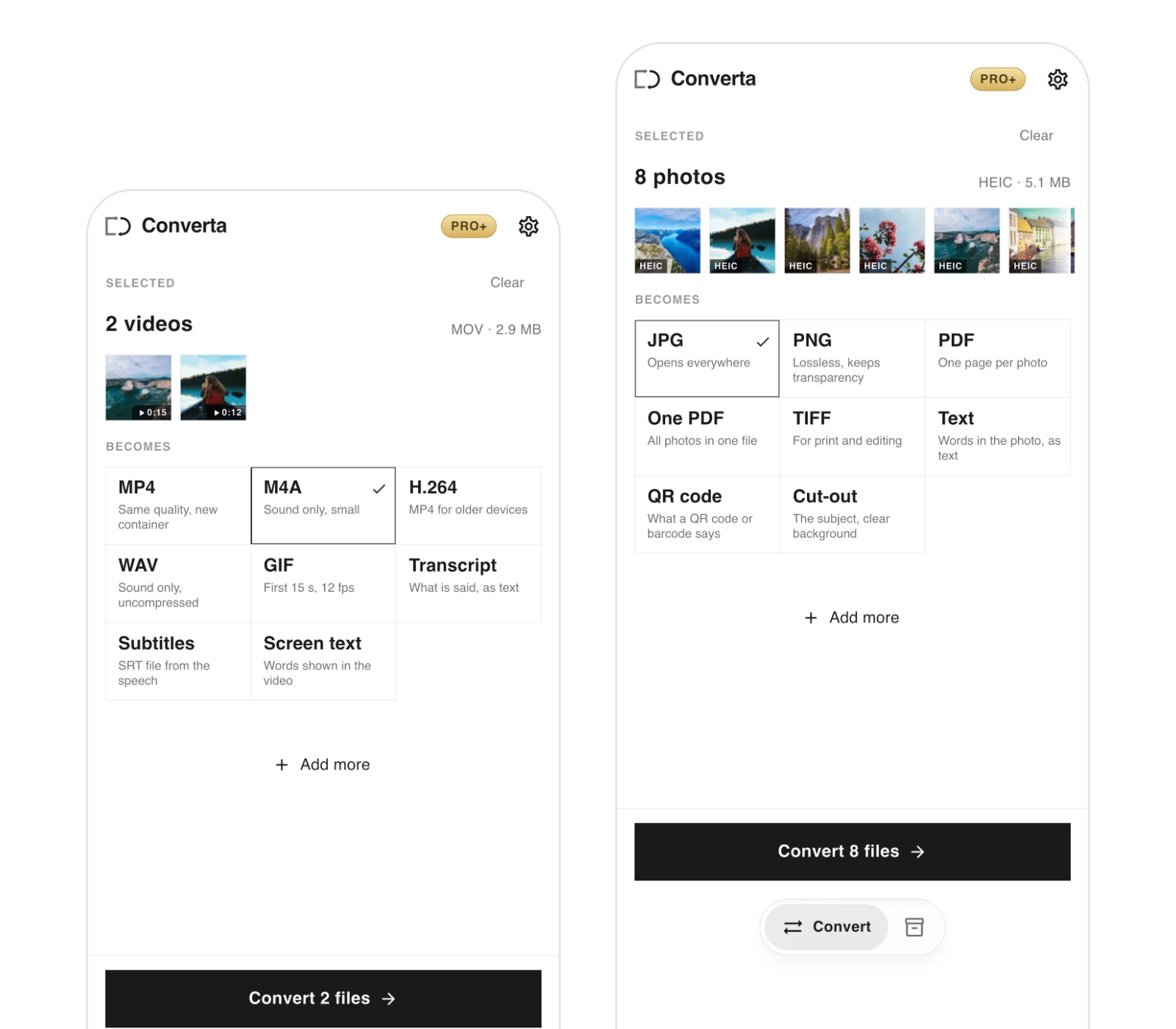
Three steps, no settings to learn.
You don’t need to know what a codec or a container is. Converta looks at the file and offers only what it can really become.
- 1
Add your files
Tap Photos, Videos, Audio, PDF, Documents or Any file, and pick from Photos or Files.
- 2
Pick what it becomes
Converta shows only the types each file can become, like JPG, MP4, M4A or PDF. Tap one and Convert.
- 3
Save or send
Save the result to Photos or Files, or send it. Every result is also kept in Converta’s Library.
The conversions people look for.
All of these are free, as often as you like.
Extract audio from a video
Save the sound of a video as an M4A file. When the sound is already AAC, Converta copies it as it is instead of re-encoding, so it’s fast.
HEIC to JPG, and back
Turn iPhone HEIC photos into JPG or PNG, or JPG and PNG into HEIC. Converta also opens GIF, TIFF, BMP, WebP, AVIF and DNG (RAW).
MOV to MP4, without re-encoding
MOV to MP4 and MP4 to MOV change only the container, so the video itself isn’t re-encoded. M4V and 3GP open too.
Photos to PDF
One PDF page per photo, or all the photos you picked in one PDF file.
PDF to JPG or PNG
Every page of a PDF becomes its own image.
Word, Excel and PowerPoint to PDF
DOC, DOCX, XLS, XLSX, PPT, PPTX, RTF, HTML, CSV and text files become PDFs. iOS lays the document out, so complex layouts can look a little different.
What each file can become.
Converta writes JPG, PNG, HEIC, TIFF, PDF, MP4, MOV, GIF, TXT, CSV and SRT, and it writes M4A, WAV and AIFF audio.
| Your file | Free | With Pro PRO | Also with Pro+ PRO+ |
|---|---|---|---|
| PhotosHEIC, HEIF, JPG, PNG, GIF, TIFF, BMP, WebP, AVIF, DNG (RAW) | JPG, PNG, HEIC PDF, one page per photo One PDF with all the photos |
TIFF | TXT, the text in a photo TXT, what a QR code or barcode says PNG cut-out of the subject, clear background |
| VideoMOV, MP4, M4V, 3GP | MP4 or MOV, container only (not re-encoded) M4A, sound only |
H.264 MP4 for older devices WAV, sound only GIF of the first 15 seconds |
TXT transcript of the speech SRT subtitles of the speech TXT, the text shown in the video |
| AudioM4A, WAV, AIFF, CAF, AAC, FLAC, M4R and other audio iOS opens | M4A (AAC) | WAV, AIFF | TXT transcript of the speech SRT subtitles of the speech |
| JPG or PNG, one image per page | TXT (the PDF’s text layer) | – | |
| Word and textDOC, DOCX, RTF, HTML, TXT | TXT | – | |
| ExcelXLS, XLSX | CSV | – | |
| PowerPoint and CSVPPT, PPTX, CSV | – | – |
Converta doesn’t write WebM, MKV, AVI, WebP or AVIF. It can’t convert copy-protected (DRM) files or password-protected PDFs, and it doesn’t open Pages, Numbers or Keynote files. A scanned PDF has no text layer, so it has no text to take out.
More out of a file, with Pro+.
Pro+ has everything in Pro, plus these. They run on your iPhone too, so nothing is uploaded.
Text from photos
What’s written in a photo, as a text file you can save or send.
QR codes and barcodes
Codes in your photos, read out as text.
Text in a video
Text shown in a video, as a text file.
Cut-out
The subject of a photo, cut out as a PNG with a clear background.
Transcript and subtitles
Speech in a video or audio file to text (TXT) or subtitles (SRT), recognized on your iPhone in its language.
Shortcuts actions
Convert Images, Extract Audio and Make PDF, for your own shortcuts and automations.
Speech is recognized only on the device, in your iPhone’s language, and only for languages your iPhone can recognize on the device; if it can’t, Converta tells you. The first time, iOS asks you to allow Speech Recognition.
Sent where you meant to.
Converta has its own send screen, so a private file doesn’t go to the wrong person with one slip.
Save · only you
Photos and Files come first: iCloud Drive, On My iPhone and other drives you use in Files.
Send · to someone
Mail and AirDrop. You choose the person on the next screen, never by accident.
Other apps
Apple’s share sheet is still there, at the bottom, for everything else.
Your files stay on your iPhone.
Converta converts with Apple’s own frameworks on the device. There’s no server to upload to.
Nothing uploaded
Converting happens on your iPhone and works offline. With Pro+, speech is recognized on your iPhone too, never sent to a server.
No account, no tracking
No sign-up, no ad networks, no analytics. The App Store privacy label is “Data Not Collected”.
Your original stays as it is
Converta never changes the file you pick. Every result is a new file in Converta’s Library, which you can also open in the Files app.
A file leaves your iPhone only when you choose a place for it on the send screen, such as Mail, AirDrop, a cloud drive or another app. Purchases go through Apple. Privacy policy.
Free to use. Pro or Pro+, once.
The popular conversions are free, as often as you like. Pro and Pro+ are one-time purchases, not subscriptions.
Free
$0 free to download
- Photos to JPG, PNG, HEIC and PDF
- MOV to MP4 and MP4 to MOV
- Extract audio as M4A, and audio to M4A
- PDF to JPG or PNG
- Word, Excel, PowerPoint, RTF, HTML, CSV and text to PDF
- 5 files per round; the rest wait for the next round
- Library and the send screen
Pro PRO
Pay once one-time purchase, not a subscription
- Everything in Free
- As many files at once as you like
- TIFF photos, WAV and AIFF audio
- H.264 MP4 for older devices, and GIF from a video
- Text out of PDFs and documents (TXT), and Excel to CSV
- On iOS 26 and later, keeps converting when you switch apps and tells you when it’s done
Pro+ PRO+
Pay once one-time purchase, not a subscription
- Everything in Pro
- Text from photos, as a text file
- QR codes and barcodes in photos, read out as text
- Text shown in a video, as a text file
- Cut out the subject of a photo as a PNG with a clear background
- Speech to text (TXT) or subtitles (SRT), recognized on your iPhone
- Shortcuts actions: Convert Images, Extract Audio and Make PDF
The App Store shows the prices for your country. Already have Pro? Upgrade to Pro+ with Get Pro+ at the top of the app or in Settings › Plan. Bought on another iPhone? Settings › Restore Purchases.
Questions people ask.
How do I extract audio from a video on iPhone?
In Converta, tap Videos and pick the video, or tap Any file for a video in Files. Choose M4A (sound only) and tap Convert. Save the M4A to Files or send it. When the video’s sound is already AAC, it’s copied as it is, so it’s fast.
How do I convert HEIC to JPG on iPhone?
Tap Photos, pick one or more photos, choose JPG and tap Convert. Save the JPGs back to Photos or to Files. The HEIC originals stay as they are.
Are my files uploaded?
No. Converta converts on your iPhone with Apple’s frameworks and works offline. A file leaves your iPhone only when you send it somewhere yourself.
Is Converta a subscription?
No. Converta is free to download, and the popular conversions are free as often as you like. Pro and Pro+ are one-time purchases.
What’s the difference between Pro and Pro+?
Pro adds as many files at once as you like, more formats, and text out of PDFs and documents. Pro+ has everything in Pro, plus text from photos and videos, QR codes, cut-outs, transcripts and subtitles, and Shortcuts actions. If you already have Pro, you can upgrade to Pro+.
Converta for iPhone.iOS 18 or later. Free to download.
Download on the App Store